
BLDC
How to prepare your artwork for printing
Start with the finished size, use clear original images, and save your design as a PDF. This guide explains each step, including how to avoid unwanted white edges or cut-off text.
Your BLDC job instructions come first. If you are unsure about a step, tell us which design app you use and we can guide you.
Download artwork preparation guide (PDF, 4 pages)1. Set the finished size
The finished size is the size of the piece after it has been cut. Confirm that size and whether the design should be tall or wide before you begin.
- Set up the document at the finished size unless BLDC gives you a different template or scale to use.
- A template is a starting file with the right size and layout guides. Ask BLDC for one for folded pieces, booklets, packaging, signs or products with holes or hardware.
- Check how many pages or sides you need. A two-sided postcard needs a front and a back.
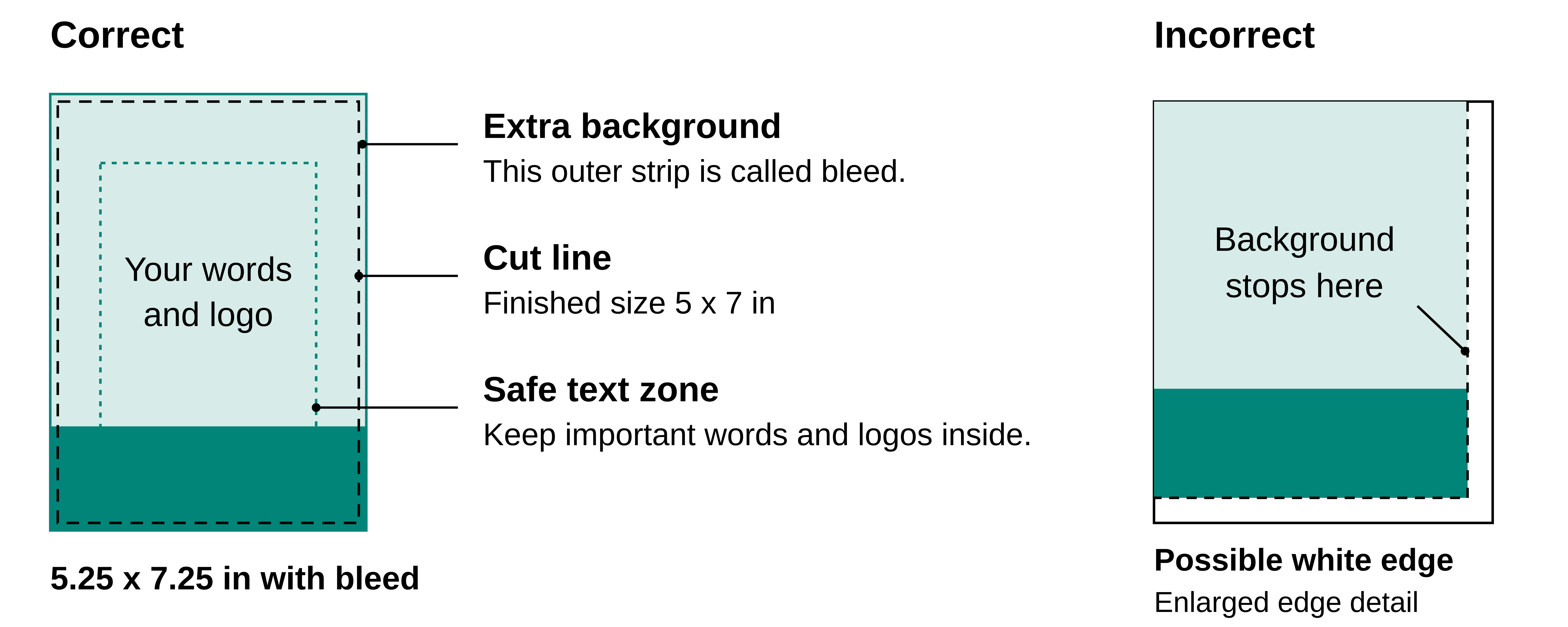
Example: A 5 x 7 inch invitation starts with a 5 x 7 inch document. Extra background for trimming is added outside that finished size, as shown below.
Need an exact brand color match? Tell us before you prepare the file and we will guide you.
2. Use clear original photos and logos
A screenshot or a small image copied from a website can look fine on a phone but blurry in print. Start with the original files whenever possible.
- Use the largest, best-quality photo you have. Avoid enlarging a small image to fill a much bigger space.
- Ask for the original logo file rather than taking a screenshot. Send BLDC what you have if you are not sure which version to use.
- Check each image at the size it will appear in print. Look for blurriness and crops that cut off something important.
Making a blurry image file larger will not restore missing detail. Ask us before relying on it.
3. Add extra background for edge to edge printing
When a color or photo should reach the edge, it needs to continue beyond the line where the paper will be cut. That extra background is called bleed. It helps prevent unwanted white edges if the cut shifts slightly.
- For many smaller printed pieces, such as cards and flyers, 1/8 inch on each side is a starting point. Follow your BLDC template or job instructions if they give a different amount.
- Keep the document at the finished size. If your app has a bleed setting, enter the amount BLDC specifies there.
- Then extend the actual background or edge-touching photo into that extra area. Turning on a bleed setting alone does not extend your artwork.
- Do not enlarge the whole design or move your words outward. If your app has no bleed setting, ask us how to set up the file.
Example only: A 5 x 7 inch document with 1/8 inch extra on every side has a total background area of 5.25 x 7.25 inches. Do not change the finished page size to 5.25 x 7.25 inches.
Crop marks are small lines that show where to cut. They are not bleed and cannot replace extra background. Add them only if BLDC requests them.
A design with an intentional white margin may not need edge-to-edge background. Ask us if you are unsure what your job needs.
4. Keep important content inside the safe area
The safe area is where important content should stay so it is less likely to be cut off or hidden by a fold, binding or hardware. Keep names, contact details, logos and QR codes inside it.
- Ask BLDC how much space your job needs. Backgrounds can extend outward; important content should stay inward.
5. Save your design as a PDF
A PDF helps keep text, pictures and layout together when you share a design. Keep your original editable file too, so you can make changes later.
- Use your app's export, download or save option and choose PDF. Do not send a screenshot or a photo of the design.
- Choose a print-quality option if available. If you do not know which settings to use, tell BLDC the name of your app.
- Include the requested extra background. Some apps ask about bleed again when saving the PDF. A bleed setting still needs actual artwork in that area.
- Use a clear filename, such as Smith-5x7-Invitation-FINAL.pdf.
You do not need to turn your text into a picture. Keep it editable in the original design and check that it looks right in the saved PDF.
6. Open and check the actual PDF
Open the file you just saved or downloaded, not only the design inside the app. This is the file BLDC will receive.
- Check every page, front and back, in the correct order. Send separate pages rather than side-by-side layouts unless BLDC asks for something different.
- Compare the dimensions with your job instructions. The PDF can be larger than the finished piece when extra background is included.
- Check that the export includes the actual extra background where needed. Some PDF viewers hide that area. If you cannot tell, ask BLDC to check it rather than assuming it is there.
- Look for missing words, changed fonts, blank pages, blurry images, shifted elements and incorrect photo crops.
After any correction, save a new PDF and open that version again. Changing the original design does not update a PDF you saved earlier.
7. Proofread and test the final file
A file can be set up correctly and still contain the wrong phone number or an old date. Read the final PDF slowly.
- Check spelling, names, prices, dates, phone numbers, email addresses and web addresses. Ask another person to read it when possible.
- For a QR code, print a sample at the actual finished size and scan it with a phone. Check the destination and leave the clear space around the code untouched.
- Check small text on an actual-size printout when possible. It may look readable when enlarged on screen but too small in print.
A home or office printout helps you check size, wording and layout. Do not treat it as an exact match for the final printed color.
8. Send one clearly named final version
Send BLDC one final PDF with a name that identifies the project. Avoid sending several files all marked final.
- Include the finished size, quantity and whether it prints on one side or both. Mention folds, binding or special finishes if they are part of the job.
- Flag anything you could not confirm, including image quality, extra background or an exact brand color match.
- Send editable design files or extra assets only if BLDC asks. Keep your originals in case changes are needed.
Before you send
Checkmarks are for this visit only and are not saved or sent to BLDC.
BLDC still needs to review your file for the specific job. These steps do not replace that review or approval of a proof.